GALNT Prime — User Manual
Version 0.1.1 · macOS (Apple Silicon) & Windows PC
Welcome to GALNT Prime — an AI-assisted, multi-exchange trading desk for your Mac. Talk to an AI to place trades, build automated rules, watch live markets across exchanges, rebalance portfolios, and get alerted when conditions you care about happen.
A note on safety: GALNT Prime ships in Dry Run mode by default — rules and orders are simulated, not sent to a real exchange, until you deliberately turn Dry Run off. Read Going Live before trading real money.
1. Getting started
Installing
- Open the
.exe OR .dmgyou received. - For MAC: Drag GALNT Prime into your Applications folder. For PC; just run the .exe (*The app isn't fully verified by Apple or Microsoft, so you will see a security warning for now.)
- Launch the Application.
First launch & sign-in
On first launch you'll be asked to sign in so GALNT Prime can check your license:
- Click Sign in with Google. A browser window opens for secure sign-in.
- Sign in with Apple is coming in a future release.
GALNT Prime only reads your email address to verify your subscription — nothing else is collected.
New accounts start a free trial automatically (see Account & plans).
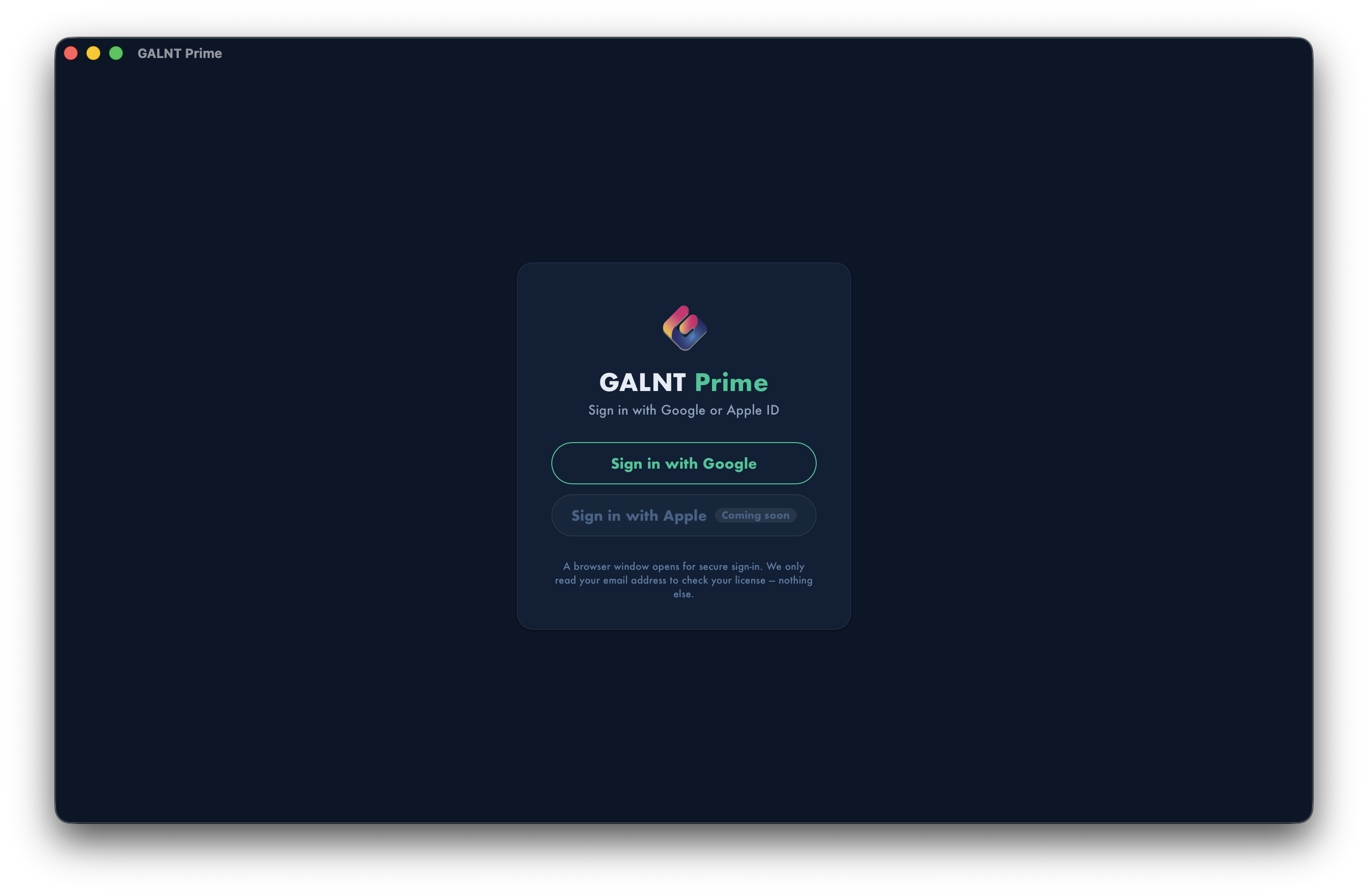 The welcome / sign-in screen.
The Setup Guide
After signing in, a short two-step Setup Guide appears:
- Connect an exchange — Settings → Exchanges: pick your exchange and paste its API key/secret. Read + trade permissions are enough; withdrawal access is never needed.
- Add an AI provider key — Settings → AI Providers: paste a key for Claude, OpenAI, or Gemini. This powers chat trading, rule building, and news alerts.
Tick "Don't show this again" to skip it next time, or choose Take me to Settings to start immediately. You can revisit everything in Settings at any point.
2. The interface at a glance
GALNT Prime has three regions:
┌────────────┬─────────────────────────────────┬──────────────┐
│  SIDEBAR   │          CENTER COLUMN          │     CHAT     │
│            │   (changes with the active tab) │  (persists)  │
│  • Logo    │                                 │              │
│  • Tabs    │   Markets / Portfolios /        │  AI chat &   │
│  • Connect │   Rules / Reports …             │  trade panel │
│  • Status  │                                 │              │
│  • Pause   │                                 │              │
└────────────┴─────────────────────────────────┴──────────────┘
The sidebar (left)
- Navigation tabs: Chat & Trade, Portfolios, Rules, Reports, Settings, Account.
- Connections panel: every connected & enabled exchange, each with a status dot. Click one to focus the whole app on that venue; click All Platforms to see everything combined. + Add Platform jumps to Settings.
- Status line: shows Dry Run (orange) vs Live (red), and Staging vs Production.
- Pause All / Resume All: a master kill-switch — see below.
The chat column (right)
The AI chat panel stays open on Chat & Trade, Portfolios, Rules, and Reports. Switching between those tabs changes only the center column — your conversation, scroll position, and any in-progress request are preserved.
The Pause switch
Pause All instantly halts all rule execution and all AI calls — nothing trades and nothing is sent to a provider. The sidebar shows a banner: "All Adapters Paused — No orders or AI calls will be made." Click Resume All to re-enable. Use it as an emergency stop.
Focus mode
Clicking an exchange in the Connections panel focuses the app on that one venue — the Market Overview, Portfolios, and chat context all narrow to it. Focus clears automatically if that exchange is later disabled.
3. Connecting exchanges & AI providers
Adding an exchange
- Go to Settings → Exchanges.
- Open the + Add an exchange… dropdown and pick yours.
- Paste the required credentials (use the show/hide toggle to check them), then click Connect.
- For testable exchanges, click Test to confirm the connection — you'll get a green (ok) or red (error) result.
Create the API key in your exchange account's own API settings. Read + trade permissions are sufficient; do not enable withdrawals.
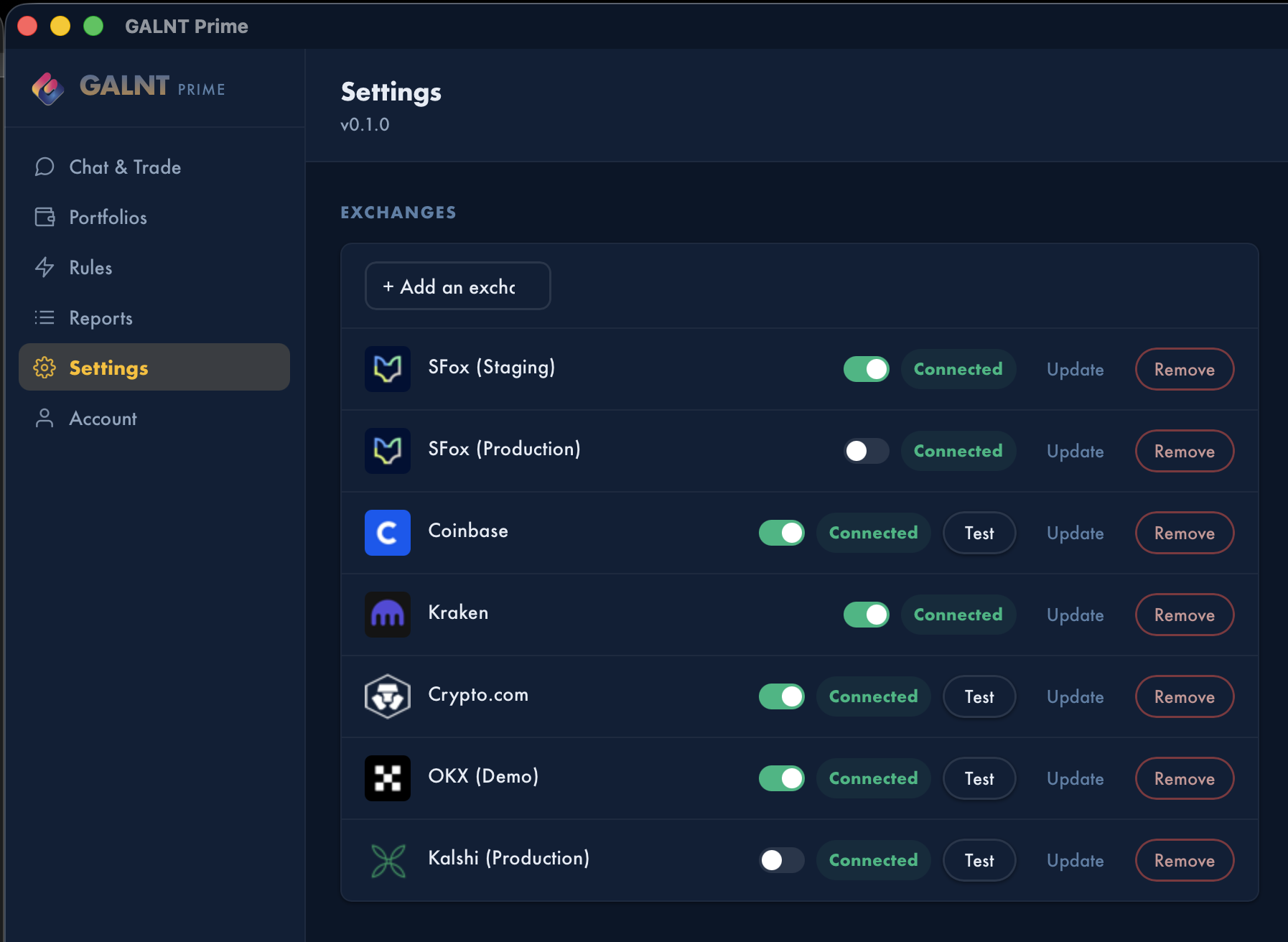 Settings → Exchanges — adding an exchange.
Supported exchanges
| Exchange | What it needs | Notes |
|---|---|---|
| sFox (Staging) | API Key | Test environment |
| sFox (Production) | API Key | Live trading |
| Coinbase | API Key Name + Private Key (PEM/Ed25519) | Advanced Trade API. Also supports Connect with Coinbase (browser sign-in, no key copying) |
| Kraken | API Key + Private Key (base64) | Spot |
| Crypto.com | API Key + Secret | Spot & perpetuals |
| OKX | API Key + Secret + Passphrase | Spot & perps. Choose Demo or Production. Uses app.okx.com (regional) |
| Binance | API Key + Secret | Spot |
| Bitget | API Key + Secret + Passphrase | Spot |
| Bitfinex | API Key + Secret | Spot |
| Bitstamp | API Key + Secret | Spot |
| Kalshi | API Key ID (UUID) + Private Key (PEM) | Prediction markets. Choose Demo or Production |
Don't see yours? Use "Don't see yours?" in the dropdown to send us a request.
Managing a connected exchange
Each connected exchange shows a Connected badge and these controls:
- Enable/disable toggle — turn a venue on/off without deleting its keys. Disabled venues disappear from the Connections panel.
- Test — re-check connectivity.
- Update — change the stored credentials.
- Remove — permanently delete the credentials for that venue.
On the free Starter plan, you also pick a Primary venue — the only exchange allowed to execute trades on that tier (see plans).
Adding an AI provider
Go to Settings → AI Providers and paste a key for any of:
| Provider | Key looks like | Get a key at |
|---|---|---|
| Claude (Anthropic) — default | sk-ant-api… | console.anthropic.com |
| OpenAI | sk-… | platform.openai.com |
| Gemini (Google) | AIza… | aistudio.google.com |
You can add one, several, or none. At least one key is required for chat-driven trading, rule building, and news alerts. The strategy builders work without AI.
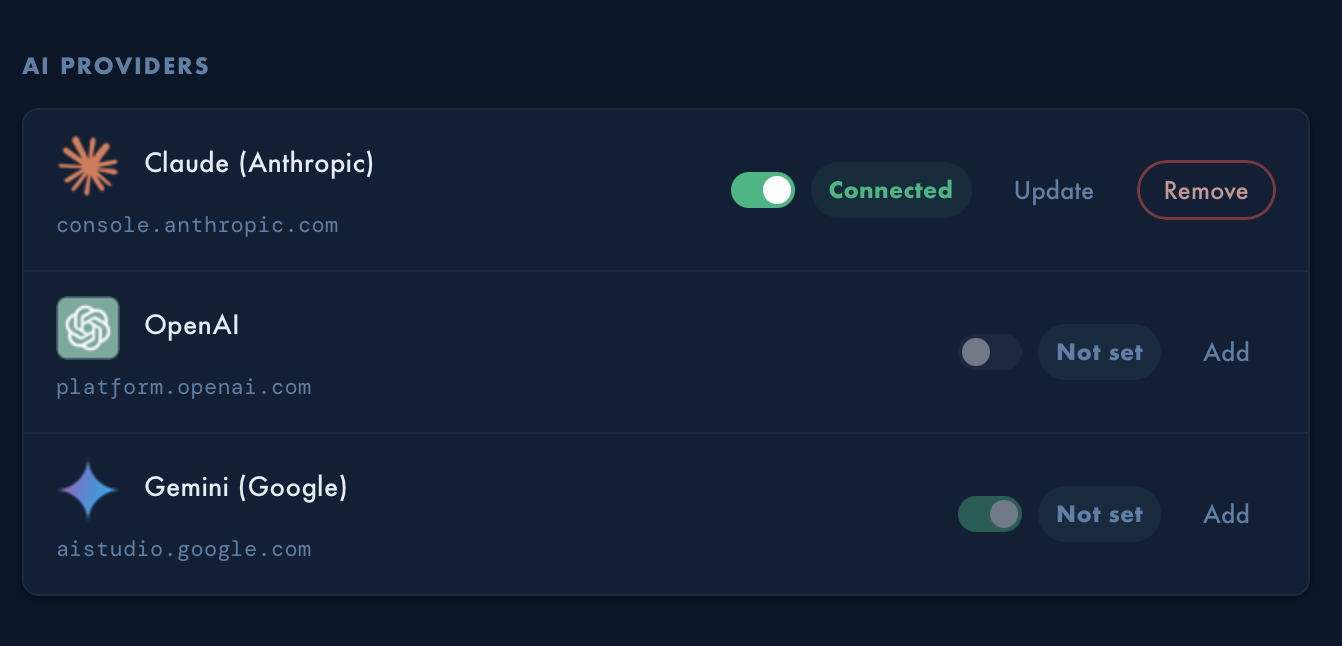 Settings → AI Providers.
4. Chat & Trade
The Chat & Trade tab is the heart of GALNT Prime: a market view on the left and an AI chat panel on the right.
Using the chat
- Pick your AI with the Claude / OpenAI / Gemini buttons at the top. A button is dimmed until you add that provider's key.
- Type a request in the box ("Ask to Trade, Alert or Automate") and press Enter or Send.
- Clear wipes the conversation back to the welcome message.
- ↻ Retry appears if a turn fails (network blip, provider error) and resends your last message.
- While the AI works, you'll see live status — Thinking… or the specific step it's running (e.g. Fetching news…).
- The welcome message offers quick-start chips: ⚡ Build arb strategy, 📰 Trade the News, ⚙️ Automate Portfolio Rebalancing, 🥷 Stealth order, and 📊 Analysis (a quick market snapshot).
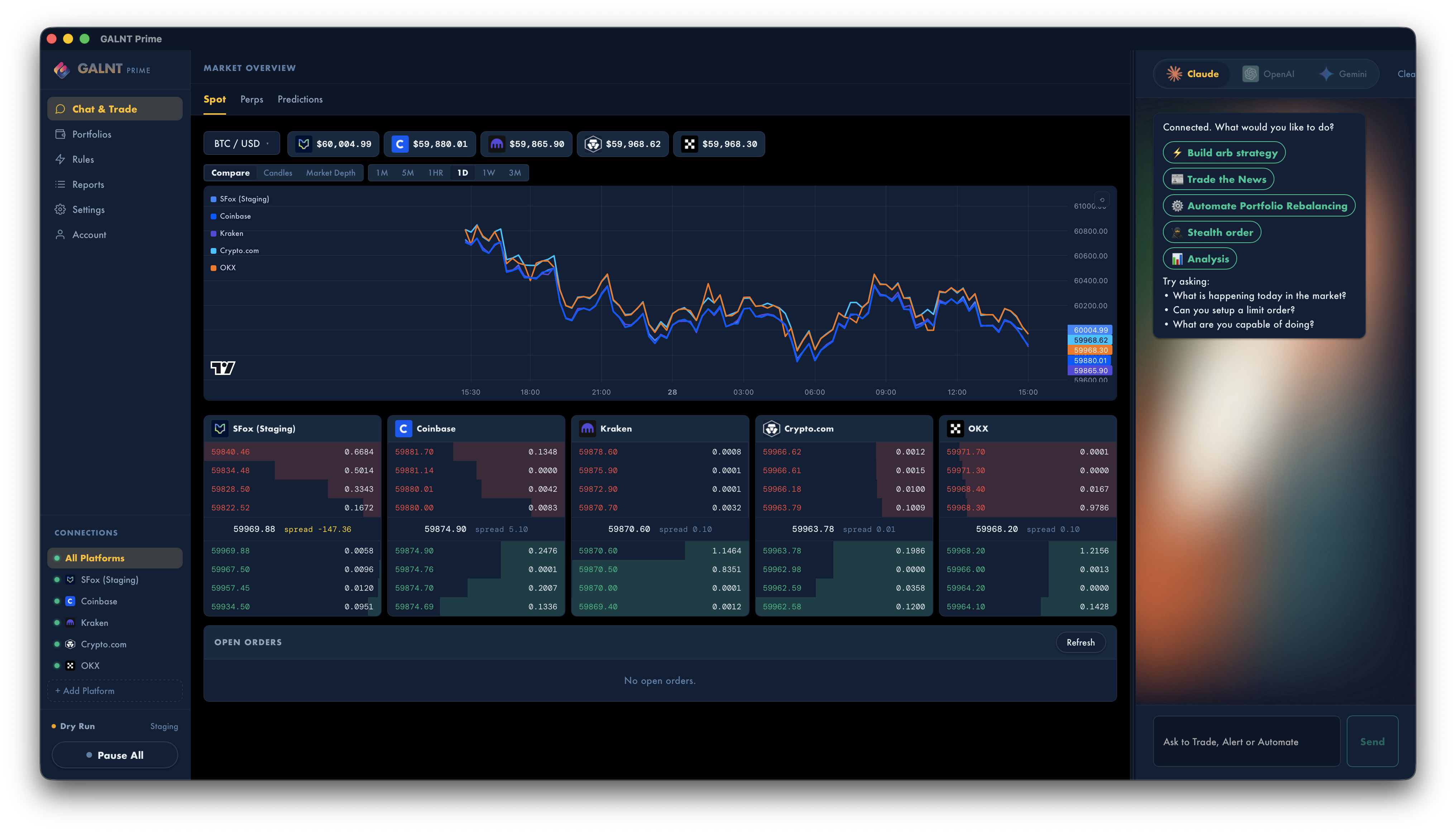 The Chat & Trade panel with quick-start chips.
What you can ask the AI to do
The assistant can take real actions on your connected exchanges:
- Check balances & positions on any connected exchange.
- Look up prices for one or many pairs, and view the order book (live bids/asks and depth).
- Place an order — market or limit, buy or sell. (Always requires your confirmation — see below.)
- Place several orders at once — e.g. both legs of an arbitrage or a hedge.
- Cancel an order and list your open or filled orders.
- Show a price chart inline — candlesticks with selectable timeframes, plus a price line for a pending limit order.
- Fetch financial news from your trusted sources for market and macro context.
- Create automated rules — price triggers, schedules (cron), spread/arbitrage watchers, economic-event triggers, perpetual take-profit/stop-loss, and event-driven rebalances.
- Preview and run a portfolio rebalance to a saved template.
- Arm or list your rules.
Just describe what you want in plain language — for example:
- "What's my BTC balance on Coinbase?"
- "Buy $200 of ETH at market."
- "If BTC drops below $60,000, buy 0.01 BTC."
- "Buy $50 of BTC every Monday at 9am."
- "Alert me when the Fed cuts rates."
How order confirmation works
The AI never places a real order silently. When it's ready, it proposes the order and asks "Shall I place it?", and the chat shows two buttons:
- YES — confirms; the AI places the order (or arms the rule).
- CANCEL — discards it.
Harmless actions — alerts, balance snapshots, news lookups — don't need confirmation.
Inline charts
When you ask about price or markets, a candlestick chart appears right in the chat:
- Timeframes: 1D / 1W / 1M / 3M.
- An Indicators menu (moving averages, RSI, MACD, Bollinger, etc.).
- For a pending limit order, a dashed price line shows where it would rest (green = buy, red = sell).
- Close a chart with ×; it won't reappear that session.
5. Strategy builders
Four guided, step-by-step wizards build common strategies without needing AI. Launch them from the chip buttons in the chat welcome message. Each appears inline in the chat and ends with a review screen.
⚡ Arb Builder — cross-exchange arbitrage
Set up monitoring or execution of price gaps between exchanges.
- Market — Spot or Perpetuals.
- Exchanges — pick two or more connected venues.
- Pair — choose from pairs supported on all selected venues.
- Minimum margin — the spread that triggers it (presets 0.05–0.5% or custom), plus a cooldown to avoid repeat fires.
- Mode — Alert me only, or Execute the trade (you set the size per leg; the dry-run state is shown).
- Review → Create rules (one per directed venue pair).
Alert-only rules go live immediately; executing rules are staged and require confirmation to arm.
📰 Trade the News — event-driven trading
React automatically to economic events.
- Event — FOMC, CPI, NFP, GDP, a Fed speech, or a custom event.
- Outcome — cut / hike / hold / above / below / in-line, or custom.
- Action — Alert me, Trade (pick market, pair, side, size, venues), or Portfolio Rebalance to a template (Premium).
- Review → arm the rule.
🥷 Stealth Builder — hidden stop orders
Create a stop that rests locally and is only submitted to the exchange when the trigger price hits — nothing shows on the public order book until then.
- Buy or sell + Market (Spot/Perps).
- Exchange and pair.
- Stop trigger — fire when price rises to ≥ or falls to ≤ your level.
- Order to submit — limit (with a limit price) or market, and the quantity.
- Review → Arm stealth order.
Example: "When BTC falls to ≤ $60,000, submit a limit buy of 0.5 BTC at $59,500" — invisible on the book until triggered.
⚙️ Auto-Rebalance Builder — event-driven rebalancing (Premium)
Rebalance your whole portfolio to a saved template when an event occurs.
- Event and outcome (as above).
- Template — pick a saved allocation (create one in Portfolios → Portfolio Manager).
- Schedule — always-on, or only within a time window; run once or every time the event recurs.
- Review → Arm auto-rebalance.
6. Market Overview
The left pane of the Chat & Trade tab. Three sub-tabs:
Spot
- Pick a pair from the dropdown (search appears when many pairs are available).
- Live price chips show the last price per exchange.
- Chart with three modes:
- Compare — one line per exchange over your chosen timeframe (1M / 5M / 1HR / 1D / 1W / 3M); hover to read every venue at once.
- Candles — a single-exchange candlestick chart with technical indicators.
- Market Depth — cumulative order-book curves across venues, highlighting any arbitrage band.
- Order books — one card per exchange showing asks, the spread, and bids with depth bars. If the pair trades on that venue, floating BUY/SELL buttons open a pre-filled order ticket.
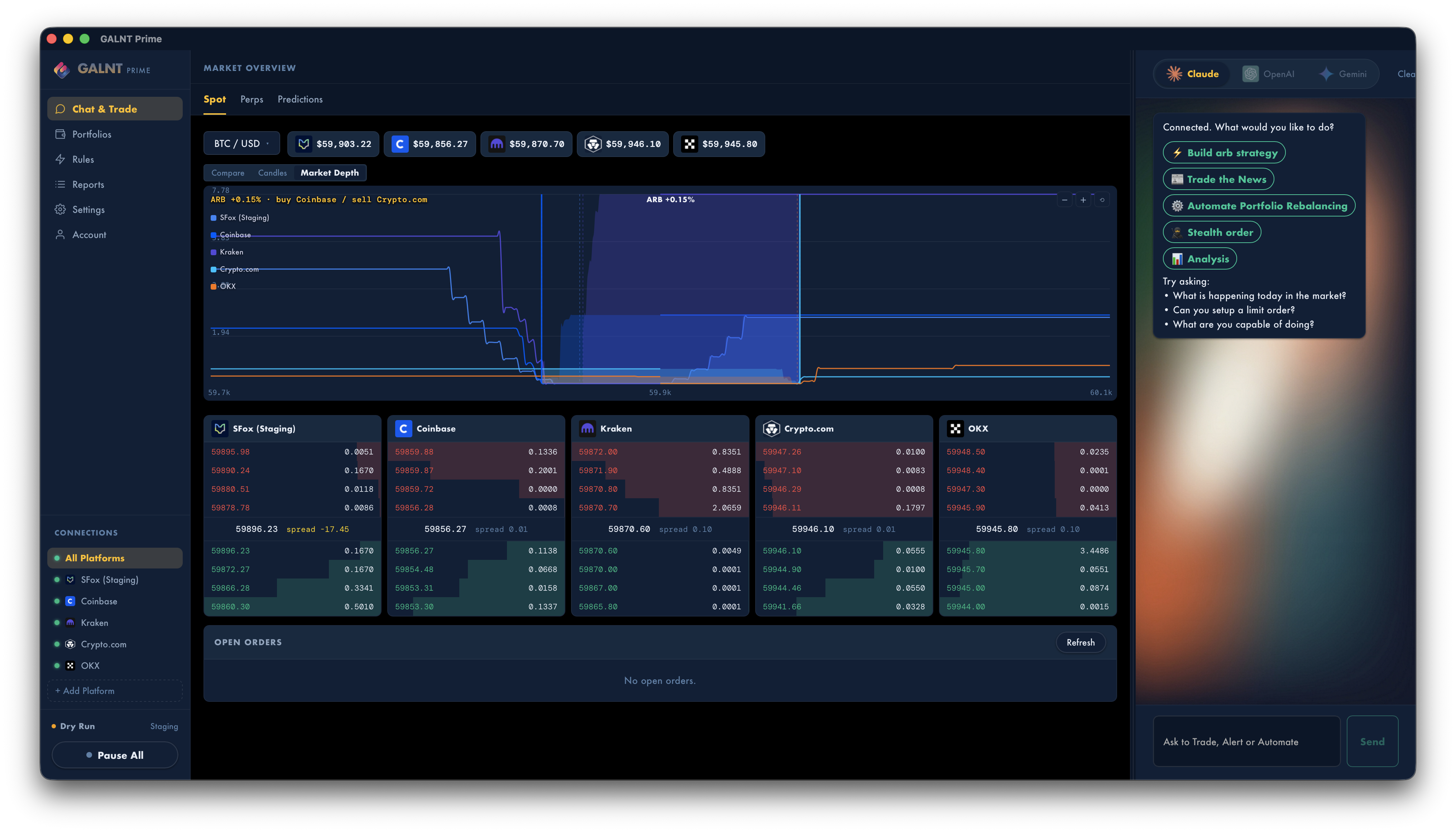 Market Overview — Spot, with the compare chart and order books.
Perps
Perpetual swap markets (e.g. BTC-USDT-SWAP). Same chart and order-book layout as Spot, plus a funding-rate badge (rate + time to next settlement) on each card. Perps are currently wired for OKX.
Predictions
Binary prediction markets via Kalshi (connect Kalshi in Settings to use this).
- Search and filter by category (Politics, Crypto, Economics, Sports, …).
- Each market shows YES and NO prices (in cents), volume, and time to close.
- Select a market to see details and Buy YES / Buy NO (1 contract, with an inline confirm step). You'll see the close date and the full resolution criteria.
7. Portfolios
A card for every enabled exchange (or just the focused one). The header shows how many of your connected venues are displayed and a Portfolio Manager button.
Each exchange card shows:
- A donut chart of holdings with the total value in the center.
- A holdings list — each asset's symbol, share of the portfolio, and USD value, largest first.
- An Available Cash callout for USD/USDT.
- A Refresh button, and a ⚠ stale badge if the last refresh failed (it keeps showing the last good data).
Placing an order directly
Click a tradable holding (or use the BUY/SELL buttons on an order book) to open the order ticket:
- Side (BUY/SELL), pair, and venue at the top, with live bid/ask for reference.
- Limit (custom price) or Market (top of book).
- Enter the amount in the base asset or in USD; a live estimate shows the other side.
- Orders above your Max order size are blocked (see Settings).
- In Dry Run, you'll see "Simulated … (Dry Run — no real order placed)"; live, "Order sent to …".
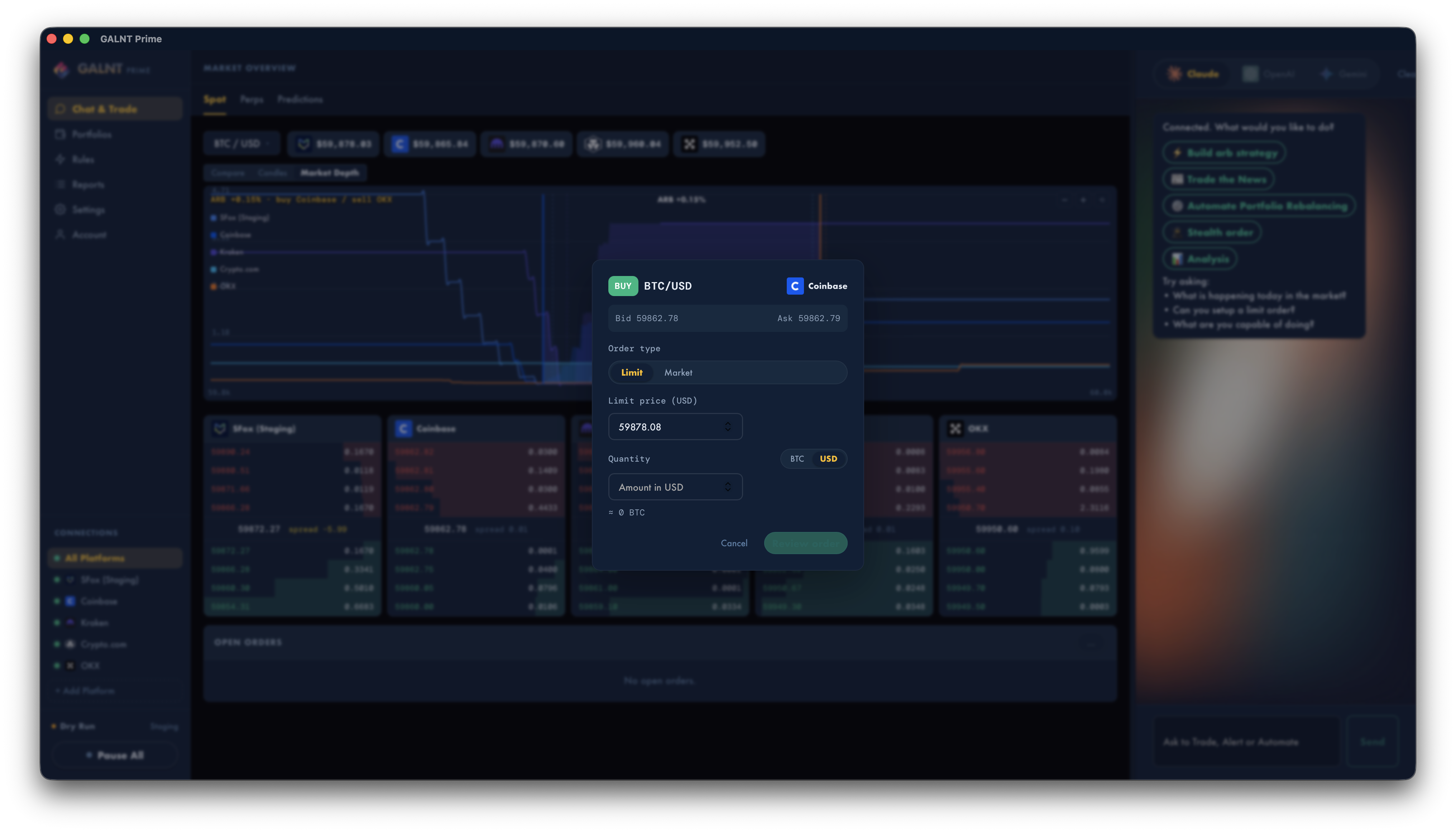 The order ticket.
8. Portfolio Manager (rebalancing)
Open it from the Portfolios header. It walks you through rebalancing one or more accounts to a target allocation, in five steps:
- Template — create or pick a target allocation (assets + target weights; the donut previews it and flags when weights total ≈ 100%). Templates can be edited, duplicated, or deleted.
- Accounts — choose which connected accounts to rebalance. Each card shows current-vs-target drift per asset (color-coded by size) and the estimated order count and fees.
- Preview — see the exact sell and buy orders per account, with notional, fees, and before/after drift. Sells execute first to free cash for buys. You must tick the acknowledgment box (orders can't be undone once submitted) before continuing. In Dry Run the button reads Confirm & simulate; live it reads Confirm & execute.
- Execution — live progress per account with status icons for each order (queued, submitted, partial, filled, failed). You can Abort, Retry, or resubmit a leg as market.
- Report — a completion summary: value rebalanced, fills, partials, failures, fees, and residual drift, with Before → Target → After allocation pies per account. Export CSV to Desktop, start a New rebalance, or click Done.
A "snapshot too old" warning appears if prices may have moved since you started; refresh the snapshot before executing.
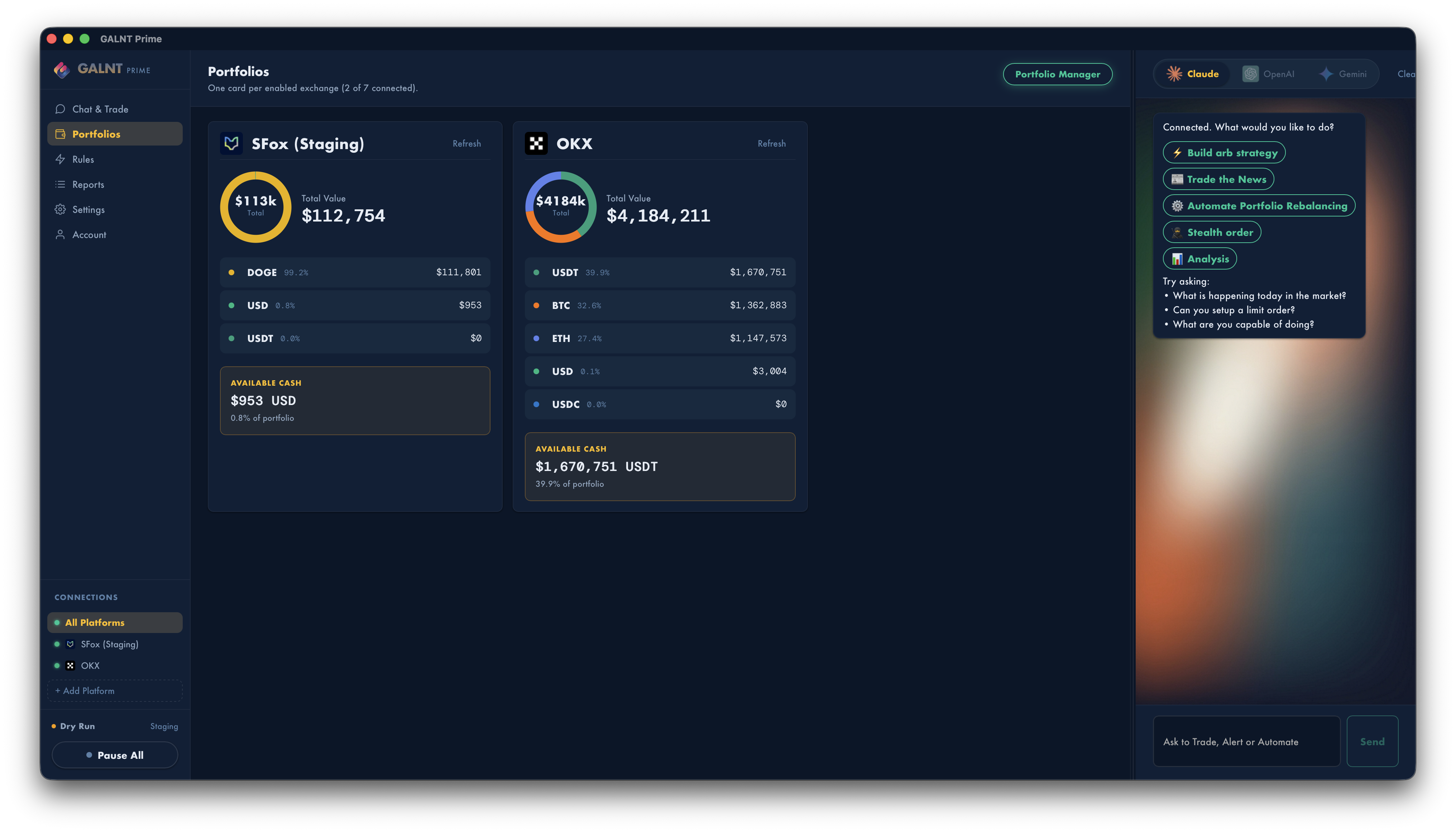 Portfolio Manager — the Preview step.
9. Rules
The Rules tab is where your automation lives. Create rules with Create New Rule, or describe them to the AI in chat ("If BTC drops below $60k, buy 0.001 BTC"). Each rule is a card with an on/off toggle, its trigger summary, target venue, the last time it fired, and edit (✎) / duplicate (⧉) / delete (×) buttons. Rules are grouped by type.
Rule types
| Type | Fires when… | Typical use |
|---|---|---|
| Price trigger | A price reaches a level, or moves a % from a baseline (up, down, or either way) | Buy dips, take profit, alert on big moves |
| Scheduled | A time you set with a cron expression | Dollar-cost averaging, daily balance snapshots, auto-cancel orders |
| Spread / Arbitrage | Order-book conditions: inverted book, spread narrows/widens, or cross-pair arb | Scalp arbitrage; alert on liquidity changes |
| Event trigger | The AI detects a real-world event outcome (optionally with a price guard) | Trade around Fed / CPI / jobs data |
| Perp PnL (close all) | Aggregate return-on-margin across your perps hits a target | Take-profit or stop-loss across all perps at once |
Creating a rule
- Create New Rule → choose a type (or Or ask your AI to build it conversationally).
- Name it and (most types) pick the platform.
- Set Active (arm it now) and optionally One-shot (fire once, then disable).
- Fill in the trigger details and the action:
- Place order — side, market/limit, pair, and quantity. Quantity can be a fixed amount, a fixed USD spend, a % of your USD balance, or a % of your asset balance.
- Notify only — sends an alert instead of trading.
- Create rule.
Price triggers can include a price guard (a second condition that must also be true). Event triggers describe the event and outcome in plain words and can run continuously or only within a time window. Perp PnL rules close every open perp on OKX & Crypto.com when aggregate ROI crosses your threshold, and are one-shot by default.
Editing, duplicating, deleting
- ✎ Edit — change any field and Save changes.
- ⧉ Duplicate — opens a paused copy you can tweak; the original is untouched.
- × Delete — click once, then confirm.
Plan limits: the Starter (free) plan allows 1 active rule at a time; Premium is unlimited.
10. Reports
Your audit trail, in three tabs:
- Filled Orders — completed trades across all venues: source, side, pair, quantity, price, total, fees, and date. Click a column header to filter (Source/Side/Pair) or sort (numeric columns).
- Open Orders — pending orders, with a Cancel button on each row.
- Activity — a live, chronological log of every system event this session: rule fires, orders, alerts, errors, and dry-run simulations, each color-coded. Use it to see exactly what the app did and why.
Use Refresh on the Filled/Open tabs to re-pull from the exchanges.
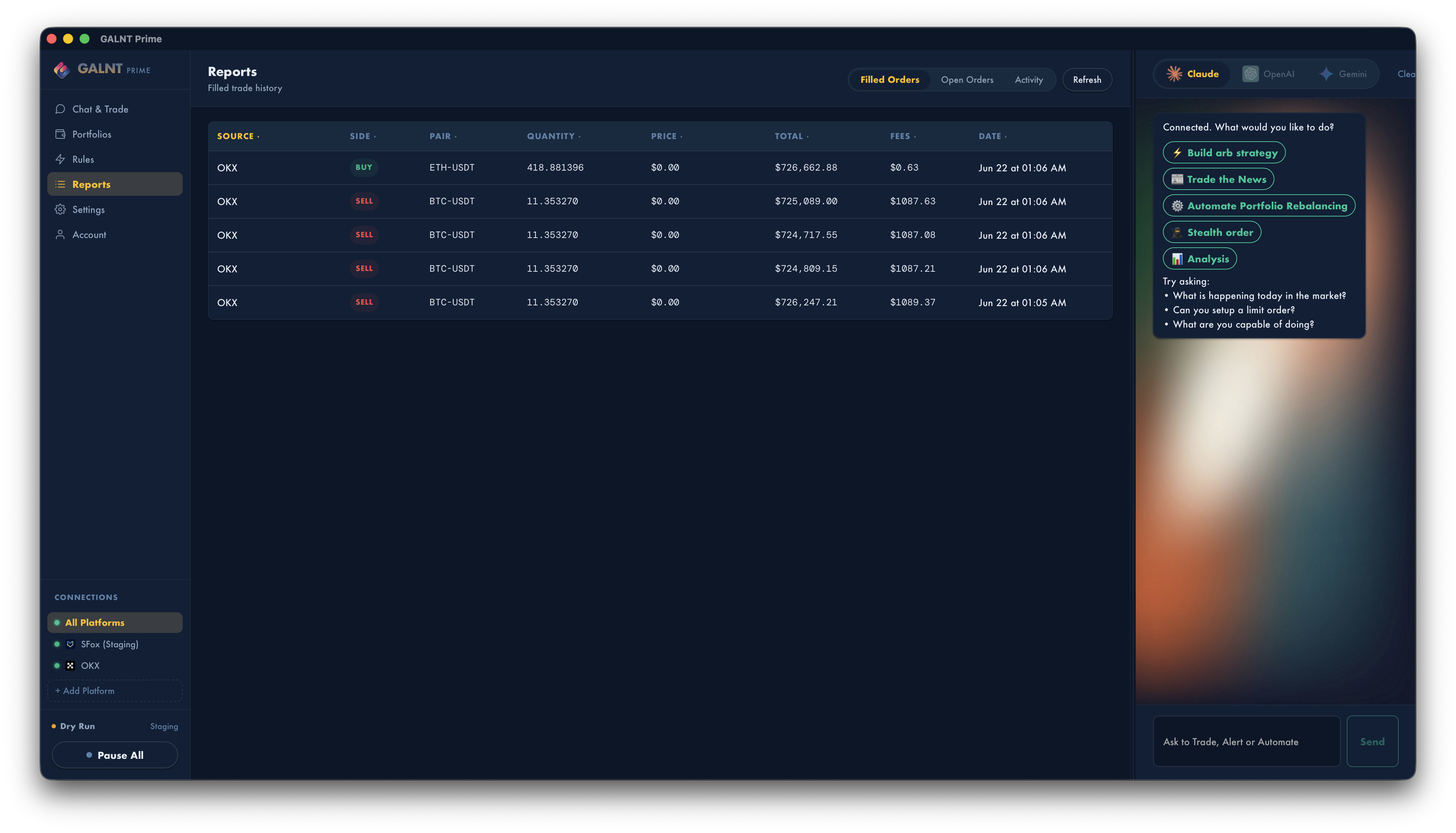 Reports → Activity log.
11. Alerts
When a notify-only rule (or an error) fires, GALNT Prime can let you know three ways — each independently controllable in Settings → Alerts:
- Popup toast — a card in the top-right that auto-dismisses after a few seconds.
- Sound — a short chime, with a Volume slider.
- Order-book flash — the relevant price level briefly highlights on the Market Overview (and replays if you switch to that view just after).
Every alert is also recorded in Reports → Activity, so you never miss one even with popups and sound off. Use the Preview button in Settings to test your popup + chime.
To cut noise: lower the volume, turn off popups/sound globally, or give spread rules a longer cooldown.
12. Settings
Safety controls
- Dry-run mode (default ON) — rules evaluate and notify but place no real orders. Turn this off to trade live (a red banner confirms it).
- Max order size (USD) (default 0 = no limit) — orders above this are blocked.
- Price poll interval (default 30s) — how often price-trigger rules are checked (10s / 30s / 1m / 5m). Shorter = faster reactions, more API usage.
Alerts
- Popup on alert (ON), Sound on alert (ON), Volume (50%), and a Preview button.
Mobile
- Local mobile bridge (OFF) — stream data and trade from the phone app over your local Wi-Fi (nothing leaves your network).
- Port (7422) — change if it conflicts; takes effect after restart.
- Pair a device — shows a QR code (and the address) for the mobile app to scan.
- Revoke access — issues a new token so paired devices must re-pair.
Exchanges & AI Providers
Covered in section 3.
Trusted news sources
Choose which outlets the AI prioritizes for news (Bloomberg, Reuters, WSJ, CoinDesk, Trading Economics, and many more), or add your own domains. With none selected, the AI uses general knowledge.
Appearance
Switch between light and dark themes.
Going live (Dry Run vs Live)
To trade real money: Settings → Safety controls → turn Dry-run mode OFF. Confirm the sidebar shows Live (red). Consider setting a Max order size first. Switch back to Dry Run anytime to test safely.
13. Account & plans
The Account tab shows your subscription on the left and a plan comparison on the right.
Plans
| Starter (Free) | Premium (Pro) | |
|---|---|---|
| Active rules at once | 1 | Unlimited |
| Portfolio templates | 1 | Unlimited |
| Execution venues | Primary only | All connected |
| Cross-venue arbitrage | — | ✓ |
| Multi-venue strategies | — | ✓ |
| Mobile rule control | — | ✓ |
| AI chat trading | ✓ | ✓ |
| Price & news alerts | ✓ | ✓ |
New sign-ups get a free trial of Premium. A banner across the top keeps you informed (trial days remaining, subscribe, or fix a billing issue). When a trial or subscription ends, the app drops to Starter — your data stays intact.
Managing your subscription
- Upgrade to Premium — opens secure checkout.
- Manage subscription — opens the billing portal to change plan or payment method.
- Sign out / Re-check — sign out, or refresh your license status from the server.
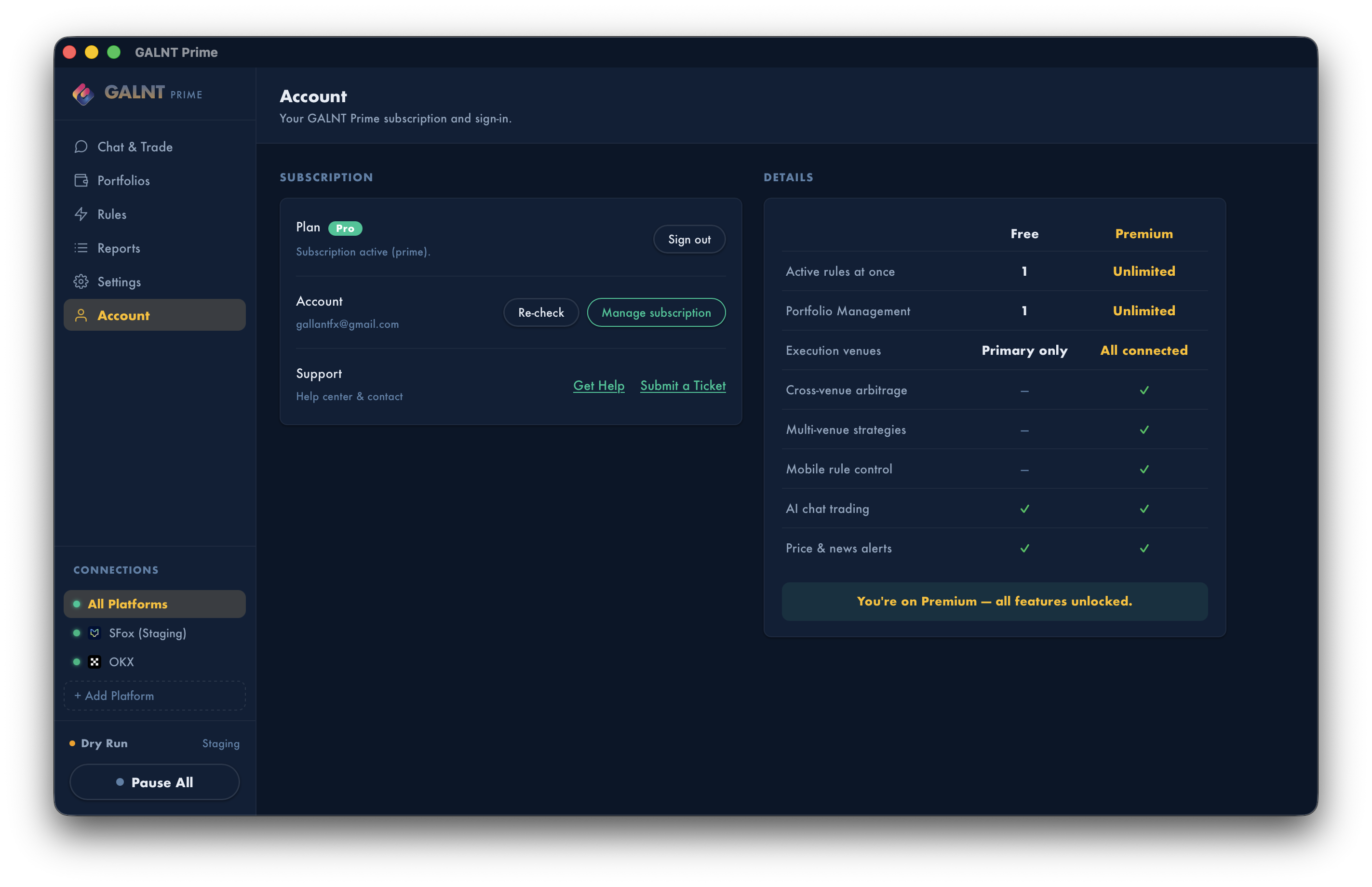 The Account page with the plan comparison.
14. The mobile companion
GALNT Prime has a phone app that connects to your desktop over local Wi-Fi:
- On the desktop, enable Settings → Mobile → Local mobile bridge.
- Open the mobile app and scan the QR code (or enter the address shown).
- You're paired — view live data and control trading from your phone.
All traffic stays on your local network. Use Revoke access to drop paired devices.
15. Staying up to date
GALNT Prime checks for updates on launch. When one is available, a slim banner appears:
- Install & Restart — downloads the update, verifies its signature, installs, and relaunches into the new version.
- Later — dismiss until next launch.
Updates are cryptographically signed; the app will not install an unsigned build.
16. Privacy & security
- Your API keys stay on your device — they're stored locally (in the macOS keychain) and never sent to GALNT servers.
- No withdrawal access needed — connect exchange keys with read + trade permissions only.
- Licensing reads your email only — to verify your subscription.
- Updates are signature-verified before installing.
- The mobile bridge is network-local — data stays on your Wi-Fi.
- Pause All is a one-click stop for all trading and AI activity.
- Dry Run lets you test every rule safely before risking real funds.
17. Getting help
- Help center: https://77spark.freshdesk.com/support/home
- Submit a ticket: https://77spark.freshdesk.com/support/tickets/new
You can reach both from Account → Get Help / Submit a Ticket inside the app.
GALNT Prime 0.1.0 — © GALNT. This manual describes the macOS (Apple Silicon) release.